Choosing item categories
How to use the 1–5 category picker on an item: type-ahead search, browsing Products and Services, adding chips, and the five-category limit.
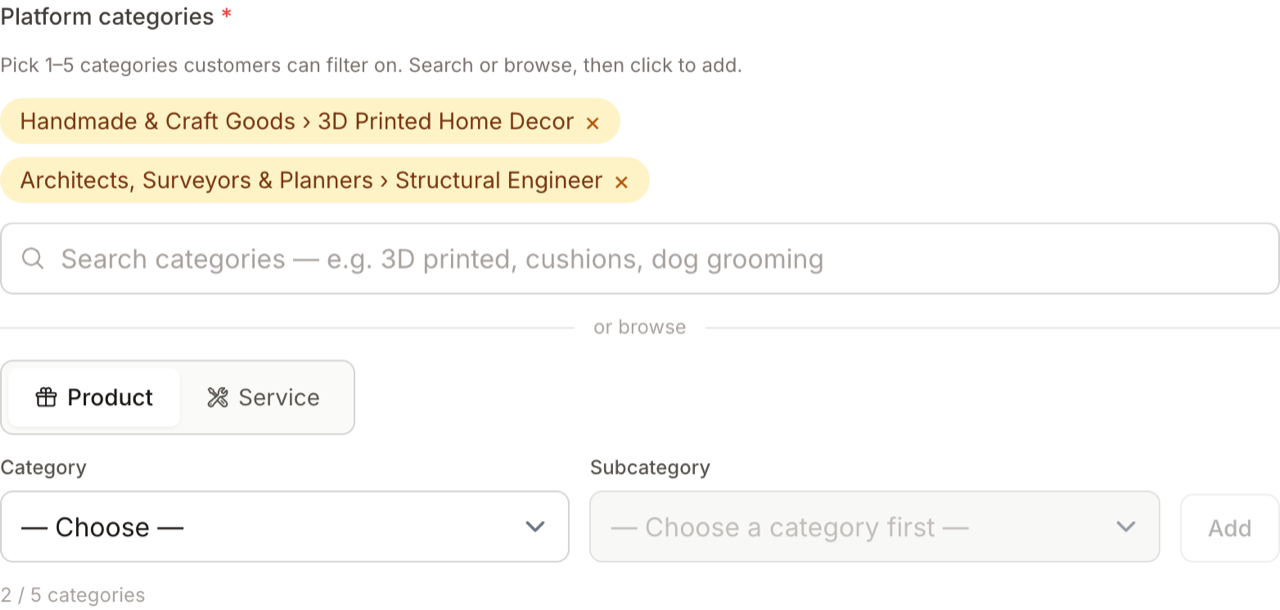
Platform categories are how buyers across LocalFor.Me find your item when they filter or browse. Every item must have at least one category, and you can choose up to five.
Important: You always pick subcategories (the specific ones, like "Cushions" or "Dog Grooming"), never the broad top-level headings. The picker only lets you add subcategories.
Two ways to add a category
1. Type-ahead search
- Start typing in the Search categories box (for example 3D printed, cushions, dog grooming).
- After two characters, matching subcategories appear in a dropdown, each showing its parent category on the right.
- Click a result to add it.
2. Browse
- Choose the Product or Service tab. Some categories (like Cafes or Arts & Crafts) appear under both.
- Pick a top-level Category from the first dropdown.
- Pick a Subcategory from the second dropdown.
- Click Add.
Your chosen categories
Each category you add appears as a removable chip, shown as Parent › Subcategory. To remove one, click the × on its chip.
A running counter shows "n / 5 categories". When you reach five, it turns amber, the search box is disabled and shows "Maximum 5 categories reached", and you can't add more until you remove one. You also can't add the same subcategory twice — an already-added result is greyed out and marked "added".
How many should I pick?
- Pick the categories that genuinely describe the item — accuracy helps the right buyers find you.
- More isn't always better: choose the handful that fit, up to the limit of five.
Tip: Categories aren't the same as search keywords. Keywords are free-text words you add separately in the editor; categories are the fixed platform taxonomy buyers filter on. Use both for the best discoverability.
Categories vs shop sections
Don't confuse platform categories with your shop section:
- Platform categories drive cross-site search and discovery — everyone shopping for "Flowers" sees relevant items.
- A shop section only organises your own storefront grid (e.g. "Bouquets", "Sympathy").
If an active item has no platform category, it's flagged on your Items page under No category and won't appear in search until you add one.