Your business dashboard
The manage overview is your home base for running a business on LocalFor.Me — it shows your status, key numbers, and links to everything from items to orders to insights.
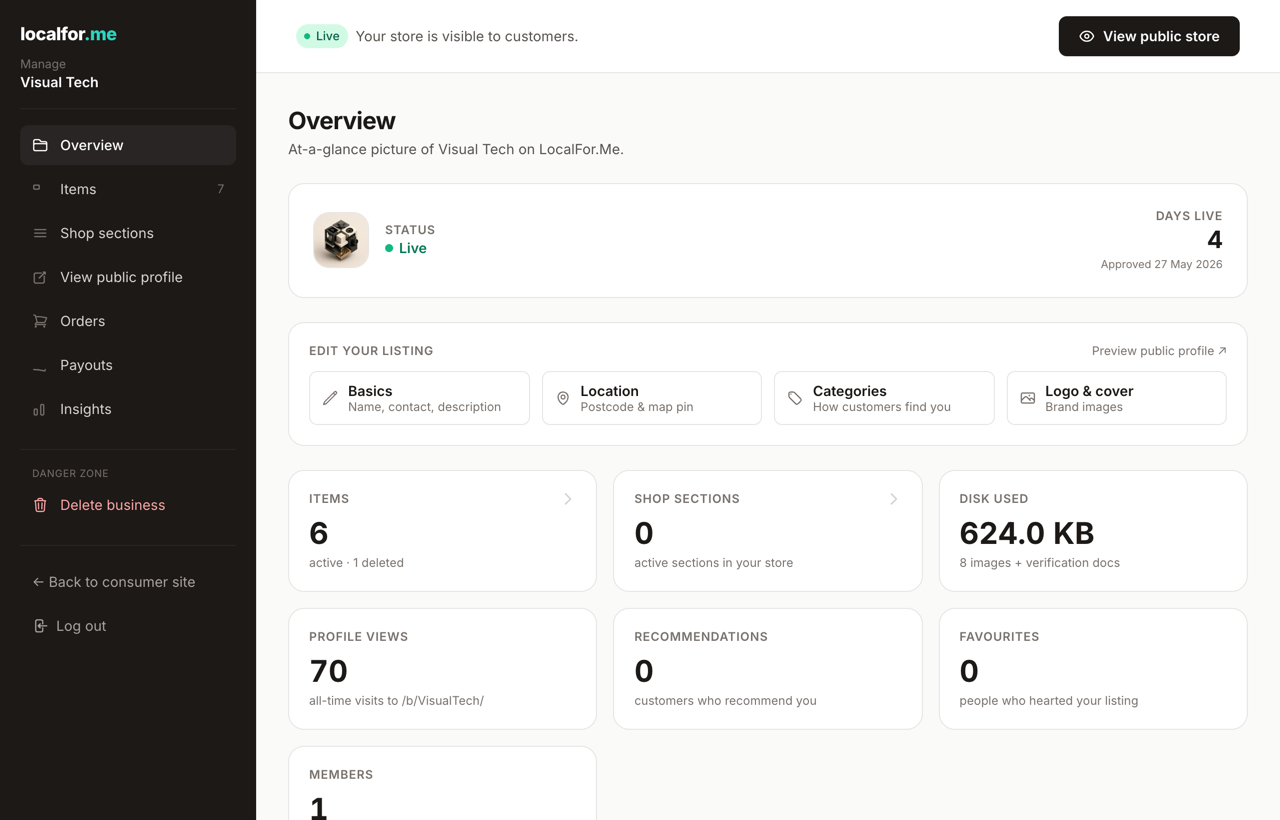
Getting to your dashboard
Your dashboard lives at the Overview page for each business you own or manage. The quickest way in is the Manage button on your own public store, or pick the business from My businesses. Only owners, managers and staff can open it.
What the Overview shows you
The Overview is an at-a-glance picture of how your business is doing.
- Status — a coloured pill telling you where your listing stands: Live (approved and visible to customers), Submitted / Under review (we're checking your application), Draft (not yet submitted), or Needs changes (rejected — update and resubmit).
- Days live — how long your store has been approved, with the approval date underneath. This only appears once you're approved.
- Edit your listing — a row of shortcut pills: Basics, Location, Categories and Logo & cover, each jumping straight to that editor.
- Key numbers — cards for Items (active, plus any draft, disabled or deleted), Shop sections, Disk used, Profile views, Recommendations, Favourites and Members.
Tip: The Items and Shop sections cards are clickable — they take you straight to those screens.
The sidebar — navigating your business
Every management page shares a dark sidebar on the left. From top to bottom:
- Overview — the dashboard you've just read about.
- Items — add, edit and organise everything you sell or offer (the count sits beside it).
- Shop sections — the groups customers see on your storefront.
- View public profile — opens your live store in a new tab.
- Orders — incoming orders to approve, fulfil and refund.
- Payouts — your Stripe Connect onboarding and payout status (a green dot shows when payments are switched on).
- Insights — deeper analytics on views and performance.
At the foot of the sidebar is a Danger zone with Delete business, kept separate so it's hard to hit by accident, plus links back to the consumer site and a log-out button.
The status bar and preview button
Across the top of every management page sits a status bar with a big Preview your store button (it reads View public store once you're approved). While you're under review, the bar nudges you to add items so your store launches with content already in place. Confirmation messages from your edits also appear here.